
Friday, May 14, 2010

Blu-ray Disc

What is Blu-ray?


Blu-ray is the advanced storage technology, which helps to store a huge amount of data in a disc than all the present storage disc technologies. In the present DVD’s we can store just upto 25GB and with this Blu-ray technology, the storing capacity raises to 50GB to 500GB capacity. The advancement is that the Blu-ray uses the optical disc technology to store the data in which the datas can be stored for a long period of time than the present DVD’s and CD’s. With the same dimensions of the present CD’s and DVD’s, the Blu-ray discs(BD) are slowly getting through the market value.


How came the name Blu-ray?

The standard CD’s uses the wavelength of infrared rays to read or write any data (780nm). The DVD’s uses the wavelength shorter than the infra red rays, around 650nm to read or write any data. But, as the Blu-ray discs use the wavelength more shorter and sharper than this, nearly 405nm wavelength, which is the wavelength of the blue violet-laser light, the discs are called as Blu-ray discs. The Blu-ray discs emerged from the word Blue-ray. Shorter the wavelength, higher will be the reading/writing speed and larger will be the disc storage capacity. So, the Blu-ray discs allow nearly five times a larger storage capacity to that of a normal DVD. At present, Blu-ray discs have a maximum, dual-layer storage capacity of 50GB.


With more than five to six times greater storage, the discs can be stored with the longer movies with the wonderful clarity and good resolution. The storage problems of the long time videos comes to an end. Another one advantage of these disks are that they comes with a hard coating layer, which are almost vulnerable to scratches.
Blu-ray developer-Blu-ray Disc Association (BDA)

The Blu-ray was developed by the Blu-ray Disc Association (BDA) which is currently signed in link with than 200 of the leading consumer electronics, personal computer, and media manufacturers that include, Pioneer Sharp, Apple, Dell, HP, Thomson Multimedia, Walt Disney Pictures, Warner Bros. Entertainment, Sony and Samsung.


Comparison between DVD and Blu-ray Disc

In early 1980’s the floppy discs were the great storage mediums, which were slowly replaced by the CD’s in late 1990’s. The CD’s too started to loose its values with the replacement by DVD’s in 2000. The Blu-ray discs with its improved storage capacity will surely replace all the existing DVD’s says a technological report.
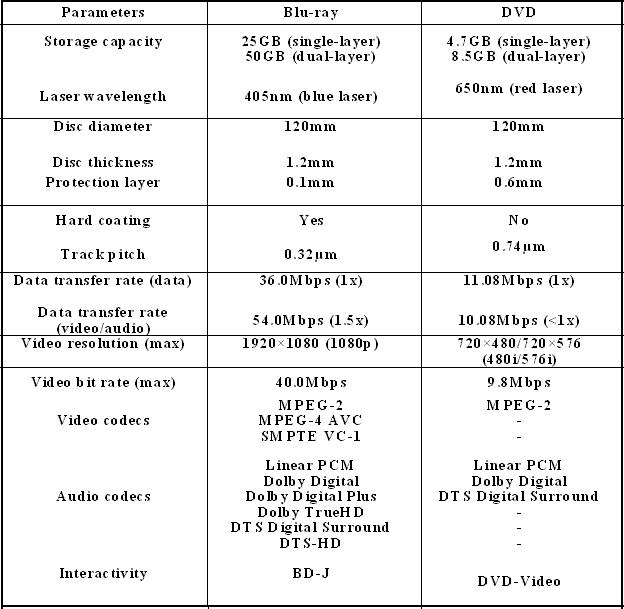


Types of Blu-ray discs

a)Mini Blu-ray Disc

The Mini Blu-ray Disc (also, Mini-BD and Mini Blu-ray) is a compact 8 cm (~3in)-diameter which is a variant of the Blu-ray Disc.It can store approximately 7.5 GB of data. It is similar to the MiniDVD and MiniCD. Recordable (BD-R) and rewritable (BD-RE) versions of Mini Blu-ray Disc are also available.

b)Recordable Blu-ray Disc

BD-R discs can be written to once, whereas BD-RE can be erased and re-recorded multiple times. It is also similar to read/write CD’s and DVD’s.

Blu-ray Players

There are variety of Blu-ray players which are designed by many companies like SONY, SAMSUNG,SHARP and so. These players also have the in-built option to play all the CD and DVD disks too.The technological advancements are being under innovation to make these players more developed. Let us wait for them...

Source :Internet

Thursday, April 8, 2010

Famous Technology Products Got Their Names

iPod:Open the pod bay door, Hal

During Apple's MP3 player development, Steve Jobs spoke of Apple's strategy: the Mac as a hub to other gadgets. Vinnie Chieco, a freelance copywriter Apple hired to help name the gadget before its debut in 2001, fixed on that idea, according to Wired. He brainstormed hubs of all kinds, eventually coming to the concept of a spaceship. You could leave it, but you'd have to return to refuel. The stark plastic front of the prototype inspired the final connection: pod, a la 2001. Add an "i" and the connection to the iMac was complete.

BlackBerry: Sweet Addictiveness

Canada's Research in Motion called on Lexicon Branding to help name its new wireless e-mail device in 2001. The consultancy pushed RIM founders away from the word "e-mail," which research shows can raise blood pressure. Instead, they looked for a name that would evoke joy and somehow give feelings of peace. After someone made the connection that the small buttons on the device resembled a bunch of seeds, Lexicon's team explored names like strawberry, melon and various vegetables before settling on blackberry - a word both pleasing and which evoked the black color of the device.

Firefox: Second Time's a Charm

Choosing a name that evokes a product's essence and is available can be quite complicated, as the Mozilla folks found out. The early version of Mozilla's browser was called Firebird, but due to another open-source project with the same name, the Mozilla elders renamed their browser Firefox, which is another name for red panda. Why? "It's easy to remember. It sounds good. It's unique. We like it," they said. Best of all? Nobody else was using it.

Twitter: Connecting the Digital Flock 140 Characters at a Time

When cofounder Biz Stone saw the application that Jack Dorsey created in 2006 he was reminded of the way birds communicate: "Short bursts of information...Everyone is chirping, having a good time." In response, Stone came up with "twttr," and the group eventually added some vowels. It's hard to think of a more evocative name in the tech world than twitter, but what began as what Stone described as "trivial" bursts of communication developed into a powerful means of networking, breaking news, and forum for the 44th U.S. president's campaign

Windows 7: Counting on the Power of 7

While Microsoft's next OS is kind of a "Ho-hum" name, one has only to look at what happened with the most recent Windows release to understand why Microsoft might have gone back to a tried-and-true naming philosophy: Vista? Ouch. Windows 95 and XP? Those have done much better. Microsoft's Mike Nash announced the name this way: "Simply put, this is the seventh release of Windows, so therefore 'Windows 7' just makes sense." We're betting that Microsoft execs are hoping that number 7 will deliver on its promise of luck—they could sure use a win after Vista.

ThinkPad: Simplicity Wins Out

The venerable line of PC notebooks rolled onto the scene in 1992. While the concept was spot on, there was turmoil at IBM as to what to call it. IBM's pen-computing group wanted to keep it simple; they liked ThinkPad. But IBM's corporate naming committee didn't - it didn't have a number, and every IBM product had to have a number, and how would ThinkPad translate into other languages? Due to the chutzpah of the IBMer who unveiled it, ThinkPad won out, and it was a huge hit for IBM, which eventually sold it to Lenovo in 2005.

Android: Secretive, But Still Not Exciting

You'd think the story behind the naming of the Open Handset Alliance's new open-source platform for mobile devices, which includes the brand-new G1 loaded with Google's goodies, would be cool. But, uh, not so much. Back in 2005, Google quietly acquired a mysterious startup named Android Inc., which had been operating under "a cloak of secrecy" on "making software for mobile phones," reported Businessweek. The result of all Google's secrecy and Internet hype was the debut of T-Mobile's G1 on Oct. 22, 2008.

Wikipedia: Just What It Sounds Like
 According to Wikipedia, the name Wikipedia is a portmanteau of wiki (a technology for creating collaborative websites) and encyclopedia (you remember, those large books that, as kids, we ruthlessly plagiarized for school book reports). FYI: a portmanteau is a fancy way of saying that we're going to take two words, jam them together and (hopefully) create a new concept that people will love. So far, so good. In an illustration of the axiom "the more things change the more they stay the same": Today, kids and adults now ruthlessly plagiarize Wikipedia instead of encyclopedias.

Mac OS X and "The Big Cats": Catlike Sleekness and Style

Apple's popular Mac operating system X actually denotes the Roman numeral 10, since it is the OS's tenth release, following Mac OS 9. To the ire of Apple fanboys, many people do refer to it as letter 'X.' More interesting have been the "big cat" code names assigned to each succeeding X release that have stuck with Apple's marketing: Cheetah (10.0), Puma, Jaguar, Panther, Tiger and current kitty Leopard. Snow Leopard has been assigned for the 10.6 release, with rumors that Lynx and Cougar are in the works.

Red Hat Linux: A Name Rich with Meaning

Cofounder Bob Young has given multidimensional origins of the red fedora name:

1. It was named after red, which in Western history is "the symbol of liberation and challenge of authority." 2. Cofounder Marc Ewing wore his grandfather's red Cornell lacrosse hat in college and became known for this tech expertise - those with problems went to see the guy in the red hat. 3. Ewing named his software projects Red Hat 1, Red Hat 2 and so on. "So, when he started his Linux project, he just named it Red Hat Linux," Young said. All righty then!

Source : Internet

Tuesday, March 9, 2010

USB 3.0: What You Need To Know

USB 3.0: What You Need To Know

The Universal Serial Bus standard has come a long way since its introduction in 1996. Backed by a consortium of companies led by Intel, Compaq and Microsoft, it offered some unheard-of features for its time, including the ability to connect peripherals without turning off the computer first and to draw power without a separate AC connection. The standard became popular with the arrival of version 1.1 in late 1998, allowing a maximum transfer rate of 12Mb/s, and as we can witness nowadays just about any device comes standard with 'Hi-Speed' USB 2.0 connectivity.


USB 3.0 is the next major revision of the ubiquitous interface. Dubbed SuperSpeed USB, this new version promises a tenfold leap forward in transfer speeds as well as improved capabilities, all while maintaining compatibility with USB 2.0 devices. In the following few paragraphs we've rounded out all the relevant information that you as a consumer should know about the next-generation USB standard.


Some quick facts about USB 3.0
 
It's fast. The new standard breaks the 480Mb/s data transfer limit of USB 2.0 and takes it to a new theoretical maximum of 4.8Gb/s. Keep in mind that real-world performance can be considerably lower than that. USB 3.0 devices are not expected to reach their full potential at launch, but as the standard matures the USB-IF considers it reasonable to achieve a throughput of 3.2Gb/s, or just about enough to transfer a 27GB high definition movie in little over a minute rather than 15 or more with USB 2.0.

It's bi-directional. Unlike previous versions where data can only be piped in one direction at a time, USB 3.0 can read and write data simultaneously. This is achieved by adding two new lanes dedicated to transmit SuperSpeed data and another pair for receiving it, bringing the total number of connections from four on USB 2.0 (power, ground and two for sending/receiving non-SuperSpeed data) to nine counting the 3.0 ground contact.
Furthermore, the signaling method, while still host-directed, abandons device polling in favor of a new interrupt-driven protocol. This ensures that the USB host controller doesn't continually access a connected device in anticipation of a data transfer. Instead, USB 3.0 devices will send the host a signal to begin a data transfer.

It's more power efficient. The signaling method mentioned directly above also means that non-active or idle devices won't have their power drained by the host controller as it looks for active data traffic. Minimum device operating voltage is dropped from 4.4 V to 4 V. On the other hand, the USB-IF has upped the maximum bus power output from about 500 mA to 900 mA, which will enable power-hungrier devices to be bus-powered and USB hubs to support more peripherals. There's also the bonus that battery-powered devices should charge faster.

It's backwards compatible. Your existing USB 2.0 gear will work on version 3.0 ports and vice versa. You'll be able to maximize your bandwidth when using a USB 3.0 cable with USB 3.0 devices and ports, otherwise plugging a 3.0 device into a 2.0 port or a 2.0 device into 3.0 a port will get you standard USB 2.0 data rates.

Since the new interface has been carefully planned from the start to peacefully co-exist with its predecessor, the connector itself remains mostly the same with the four USB 2.0 contacts in the exact same location as before. Extra pins for the new lanes dedicated to transmit and receive SuperSpeed data are located on the back and only come into contact when mated with a proper USB 3.0 port.

The receptacle is deeper as a result of this and USB 3.0 plugs will be longer than existing ones to reach the rear contacts. Also, due to the use of additional wires the new cable will be about as thick as an Ethernet cable.

Source:- Internet 

Thursday, February 25, 2010

Password Security

Password Security

With most websites requiring you to create an account, do you find yourself in a bit of a pickle when it comes to inventing passwords? Many people use the same password for all their online accounts and often forget the password they came up with months ago. Hands up who doesn’t feel like banging your head against the wall trying to remember the password you created months ago..?

Let’s face it - everyone has problems with creating and remembering secure passwords. That’s why  decided to help.

Tips on how to create and remember your passwords:
•Use the first letters of a sentence that you will remember,e.g. "I have 3 cats: Fluffy, Furry and Shaggy" gives: Ih3c:FF&S, or “Bouncing tigers have every right to ice-cream” becomes: Bther2I-C.

•Take the name of the website and then add your personal twist, like your height or your friend’s home address (e.g. “AmazonOceanRd6’ 2”). Avoid using your own contact details like your phone number or house number.

•Remove the vowels from a word or phrase e.g. "I like eating pancakes” becomes: Ilktngpncks”.

•Use a phrase from your favourite book and then add the page, paragraph or chapter number.

The Do’s and Don'ts of creating passwords

Do:

•Mix letters, numbers and symbols, and use case sensitivity (upper and lower case letters)

•The longer the better. Use passwords that are longer than 6 characters.

•Change your passwords at least every 60 days, cycling the numeric values up or down makes the new password easy to remember.

•Try copying and pasting at least some of the characters in your password that way keyloggers won’t be able to track your keystrokes.

Don't:

•Don’t use words or phrases or numbers that have personal significance. It is very easy for someone to guess or identify your personal details like date of birth.

•Avoid writing your password down, use a reputable password manager to manage all your passwords.

•Don’t use the same password for several logins, especially if they involve sensitive financial or other personal information.

•Don’t tell anybody your password.

•When registering on websites that ask for your email address, never use the same password as your email account.

Source:-Internet

Friday, February 12, 2010

Professional Onsite Tools To Carry Out.......

When you’re out on a troubleshooting call, the last thing you want is to be unprepared. Not only does it make you look bad, it’s unprofessional and reflects poorly on your company. Because you can’t always know what you are getting into, it’s best to travel with more than enough. Luckily,


Here’s a list of  items you shoud have on every run out.

1: ccleaner
Ccleaner is a freeware utility for system optimization, privacy, and cleaning. This tool will remove unused files from a hard drive and clean up online history. But more important, it includes an outstanding registry cleaner. Just be sure you use this tool with caution so you don’t delete files that are actually important.


2: AVG
AntivirusAVG Antivirus is one of the first lines of defense I suggest to clients. And although AVG Free is fine for household use, make sure you are suggesting the Pro version for your commercial clients. The Pro version adds many features, including the ability to scan for rootkits.


3: Puppy Linux (or Knoppix)
You never know when you are going to require a tool that can run checks on hardware that a running operating system can’t do. With either Puppy or Knoppix, you can reboot your machine into a live system and do maintenance that Windows simply can’t do while running.


4: Extra flash drives
How many times have you done backups or needed to save log files and had nothing to save to? I always carry numerous flash drives of various sizes. I even carry empty flash drives in case a client needs one. Those items can always be billed.


5: Combofix
Combofix can really save your hide. This tool will scan for known malware and/or spyware and safely remove it. When Combofix completes its scan/removal, it will generate a report you can save and reference later (when billing or when a similar behavior strikes.)


6: Paper and pen
Paper and pen will always win. You never know when you need to jot down notes. And although most consultants are never too far away from their trusty laptops, you can’t leave your laptop with the client so they can read your recommendations. Being able to quickly jot down an error message or thought is so much easier with your trusty pad and writing utensil.


7: Malware Bytes Anti-Malware
Malware Bytes Anti-Malware is one of the best tools for removing malware from a PC. Unlike a lot of its competition, Malware Bytes Anti-Malware can safely remove even advanced malware.


8: MiFi-like device
There are times when you need your good old friend Google. But what happens when your client’s network is down or when you can’t join their wireless network? You need to be able to have a connection with you at all times. Most mobile providers offer portable wireless access points (like the Verizon MiFi). These tools can get you wireless access where ever you have a cellular signal.


9: Ethernet cable
How many times have you had to scramble for another Ethernet cable? Whether it’s to hook up a printer or that other machine that’s just “sitting around doing nothing,” most clients won’t be prepared with spare cables. Having a spare can also provide your own laptop with connectivity when you can’t get on your client’s wireless network.


10: Snacks
You’ve been tirelessly working on an issue and lunch time comes and goes. You’re trying to track down that virus and your stomach is growling. If you’re like me, you start getting a bit grouchy once that hunger really sets in. Do yourself a favor and carry around a snack to avoid this problem. You and your clients will be happy you did

Enjoy...source internet.

10 Open Source Windows Apps Worth Checking Out

I understand that most people associate open source with Linux. But there are quite a few solid applications for the Windows operating system, developed and maintained by the open source community. Oh sure, there’s OpenOffice and Firefox; but it doesn’t end there. I’m going to introduce you to 10 open source applications for Windows. You may never have heard of some of them or knew the port existed, but they’re definitely worth a look.

1: VLC
VLC is one of the most flexible multimedia players available. It supports a vast number of audio and video formats, including H.264, Ogg, DivX, MKV, TS, MPEG-2, mp3, MPEG-4, and aac, and it supports streaming and TV capture cards. VLC isn’t limited to viewing multimedia files, either. It can convert and transcode formats, too.

2: Gnumeric
Gnumeric is the spreadsheet portion of the GNOME Office suite (as well as a stand-alone tool). Gnumeric has been around for quite some time and is an outstanding entry in the spreadsheet world. Gnumeric currently has 520 spreadsheet functions (154 of which are unique) and is faster than any spreadsheet application you have ever tried. Gnumeric can read many spreadsheet formats, but if you’re looking for a clone of Excel, look elsewhere.

3: Abiword
Abiword is also a part of the GNOME office suite (as well as a stand-alone tool), and it can serve all your word processing needs. With Abiword, you can create and collaborate. It’s lightweight, fast, reliable, and (like all tools on this list) free! Abiword can read and write both Microsoft Office and OpenOffice document formats.

4: Audacity
Audacity is an incredible piece of software for recording and editing sounds. You can use it to record live audio, convert analog recordings to digital, cut/copy/splice, change speed and pitch, and import/export numerous formats. Audacity can also remove noise and add effects. If you’re looking for an open source recording studio, don’t overlook Audacity.

5: Inkscape
Inkscape is a powerful vector graphics editor similar to Illustrator, Corel Draw, and Xara X. It closely adheres to W3C standard SVG file format, so you can be sure that any SVG file created with (or edited by) Inkscape will work with any other standards-compliant tool. One nice aspect of Inkscape is the availability of numerous tutorials, which you will find on the Inkscape site and on other sites.

6: X-Chat 2
X-Chat 2 is one of the best IRC clients available. Although many users are foregoing IRC in favor of standard IM tools, IRC is still a valuable resource for consultants and IT admins. I still frequent Ubuntu Classroom chats to learn as much as I can from the developers of Ubuntu. There are plenty of excellent chat rooms out there; why not use the best chat app available?

7: FreeMind
FreeMind is “mind mapping” software that’s ideal for keeping more dimensional notes on projects, classes, thoughts, etc. The best thing about mind-mapping tools is they are not as limiting as standard “task” tools or to-do lists. Note: FreeMind is written in Java, so you will need Java installed.

8: TurboCASH
TurboCASH is a personal finance manager and entry-level accounting package for Windows. It has been around for a number of years, so it has a solid foundation as well as a large following. TurboCASH is used by more than 100,000 companies in more than 80 countries.

9: Amaya Web Browser
Amaya Web Browser is that alternative browser you’re looking for to stand as either a testing ground for WC3 compliance or if you just want to be different. But Amaya is not just a browser. It’s also a Web editor. Believe it or not, the Amaya browser has been around since 1996 and is directly hosted by the W3C.

10: ClamWin
ClamWin is an antivirus tool for Windows based on the venerable ClamAV for the Linux operating system. ClamWin offers all the standard features you’re used to in an antivirus tool, as well as Outlook and Explorer integration. The only difference between ClamWin and the competition (besides the price) is that it does not use a real-time scanner. Other than scheduled scans, you have to manually scan a file for a virus. Because of this, ClamWin is not for the lazy.

Source : - Internet..................

Wednesday, February 10, 2010


10 issues to consider during virtualization planning

Virtualizing your servers offers significant advantages, but effective planning is crucial to your success. Make sure you have satisfactory answers to these key questions before you get underway.


--------------------------------------------------------------------------------

Server virtualization is becoming increasingly popular, and it seems that everyone is in a mad dash to virtualize their datacenter. While there’s no disputing the benefits of server virtualization, there are some questions you should address before you begin to virtualize your servers.

Note: This article is also available as a PDF download.

1: Does my virtualization plan include a single point of failure?I recently did a consulting job for an organization that had virtualized all of their servers. The problem was that they’d placed all of their virtualized domain controllers onto a single host server. If that host had died, it would have taken all the domain controllers with it. It’s important to plan your virtual server deployment so that the failure of a single host server will not have catastrophic consequences.

2: Are all my applications supported in a virtual environment?Believe it or not, some fairly common applications are not supported on virtual servers. For example, some versions of Exchange Server are supported only on physical servers. Others are supported only on specific virtualization platforms. Before you begin virtualizing your servers, make sure that your applications will be supported in a virtual environment.

3: Do I have any servers that are not good virtualization candidates?Some servers simply do not make good virtualization candidates. This is especially true of servers that run resource-intensive applications or that require special hardware. For example, some enterprise applications enforce copy protection through the use of a dongle. Dongles are almost never supported in a virtual environment.

4: How will domain controller placement work?Earlier, I mentioned that you shouldn’t place all of your domain controllers on a single host, but there is more to domain controller planning than that. You have to consider whether you want to virtualize all your domain controllers. If you do virtualize all of them, you will have to decide whether the host servers will be domain members. Making the host servers domain members when all of the domain controllers have been virtualized leads to a “which came first, the chicken or the egg” paradox (although it can be done).

5: What is the most suitable virtualization platform?Numerous server virtualization products are on the market, and each has its own strengths and weaknesses. Be sure to take some time and figure out which product will work best for your own situation.

6: What is the contingency plan if a host server dies?While a server failure is never good, its effects are compounded in a virtual environment. A host server failure can take down several virtual servers and cripple your network. Because host server failures can be so disruptive, you need to have a plan that will help minimize the impact of an outage.

7: How many guest machines can each host accommodate?Probably the single biggest mistake administrators make when virtualizing a datacenter is overloading the host servers. It is critical that you do some capacity planning ahead of time to determine how many guest machines each host server can realistically accommodate. Since every guest machine is different, you need to at least have an idea of where you would like to place each guest machine when you begin the capacity planning process.

8: What software licenses will be required?Software licensing often works differently in a virtual environment. For example, if you are using Hyper-V, you may not be required to license the Windows operating systems that are running on your guest machines. Things aren’t always so cut and dried, though, because the actual license requirements vary depending on the versions of Windows being used. Make sure that you understand the license requirements for the operating systems and applications that will be run on your guest machines.

9: How will the old server hardware be used?The virtualization process often results in a number of leftover servers. You might be able to repurpose some of them as virtualization hosts, but you might end up having to retire them. In any case, you should have a plan for your old server hardware.

10: What is the plan for existing server clusters?Although cluster nodes can sometimes be virtualized, you may find that the nodes perform better on physical hardware. If you do decide to virtualize your cluster nodes, just make sure that you don’t put all of them on the same host server. Otherwise, you will defeat the purpose of having a cluster because the host will act as a single point of failure.
Source:- Internet {TechRepublic}